Manual Channel and Role Creation
This article details the process of manually setting up a Discord server for Alter Ego. If you use the server template provided in the official tutorial, you can skip this process entirely.
Create roles
Note: Ensure that the role that was created when you invited Alter Ego to the server (which was automatically assigned to it) is the second highest role in the list.
Navigate to the Server Settings, then open the Roles tab. You’ll need to create several roles and set their permissions.
@everyone
This should be one of two roles in your server at the moment. Disable all permissions for it. There are some optional permissions you can enable for it, however. Doing this will enable them for every role:
- Embed Links (optional)
- Attach Files (optional)
- Add Reactions (optional)
- Use External Emoji (optional)
- Whether this permission is enabled or not, any external emoji that are sent in Room or Whisper channels, whether by a Player or a moderator, will not be sent in spectate channels. Instead, they will be replaced with the name of the emoji. This is because Discord does not allow bots to use emoji from servers they are not in, and Alter Ego can only be in one server.
- Use External Stickers (optional)
- Stickers will not show up in spectate channels under any circumstances.
[Bot name]
This will have been automatically created when you added your bot to the server and will be the name of your bot. You can change the role’s name if you wish, but be sure to enable the following setting:
- Display role members separately from online members
You can leave everything else as it is.
Hidden
This is a role not required by Alter Ego, but helpful to have. By giving it to certain server members, you can keep them in the server while hiding them from players. This is useful if you want to have secret NPCs in your game. Disable all permissions for it.
Dead
This is a new role you’ll have to create. You can call it whatever you want, but remember that it’s supposed to be the role for dead players. These are the settings you’ll need to enable:
- Display role members separately from online members
- Allow anyone to @mention this role
- Read Message History
Disable everything else.
Spectator
This is the role for spectators. Once again, you can call this (and all of the new roles) whatever you like, but the names given here are what’s recommended for clarity’s sake. Enable these settings:
- Display role members separately from online members
- Allow anyone to @mention this role
- Read Message History
Disable everything else.
Tester
This is the role for testers. This role is only necessary if you use debug mode. Enable these settings:
- Allow anyone to @mention this role
- Send Messages and Create Posts
Disable everything else.
Eligible
This is the role for users who allowed to play the game. If a user doesn’t have this role, they won’t be able to use the play command when you issue the startgame command. Enable these settings:
- Allow anyone to @mention this role
- Send Messages and Create Posts
Disable everything else.
Player
This is the role for players in an ongoing game. Users with the Eligible role will be given this role as soon as they use the play command, or when you use the addplayer command. Enable these settings:
- Display role members separately from online members
- Allow anyone to @mention this role
- Send Messages and Create Posts
Disable everything else.
Free Movement
This role allows a player to move to any room they wish, adjacent or not. This should generally not be given out freely. Enable these settings:
- Display role members separately from online members
- Allow anyone to @mention this role
- Send Messages and Create Posts
- Read Message History
Disable everything else.
Moderator
This is the last role you need to make. This should be given to your moderator(s), including yourself. Enable these settings:
- Display role members separately from online members
- Allow anyone to @mention this role
From here, you have two options: you can either give them the Administrator permission, which automatically gives them all permissions, or grant the following permissions:
- View Channels
- Manage Channels
- Manage Roles
- View Audit Log
- Change Nickname
- Manage Nicknames
- Send Messages and Create Posts
- Embed Links
- Attach Files
- Mention @everyone, @here, and All Roles
- Manage Messages
- Read Message History
Whether you give them Administrator privileges or not depends on whether or not you want any other moderators to be able to do things like change the server name or add emojis. All other permissions are optional.
Organize roles
A good thing to do is to organize your roles. You can give them special colors if you want, too. An order like this is ideal:
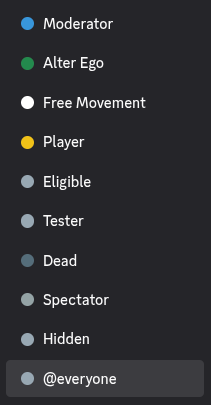
Ensure that the role that was created when you invited Alter Ego to the server (which was automatically assigned to it) is the second highest role in the list. If it’s not, it may have issues with permissions.
Create categories and channels
There are a number of channels you’ll have to create before you can get Alter Ego to work. You can name them all anything you want, but the ones listed here are recommended for clarity’s sake.
Category: Important
This category is where you should put all of the important channels that will be viewable to everyone. You can put all kinds of channels here such as rules for the role play, a list of players, maps, etc. Before anything else, though, you’ll have to set the permission overrides for this category. Be sure to assign the following roles the listed permission overrides for this category:
- @everyone
- View Channels: Enabled
- Send Messages and Create Posts: Disabled
- Read Message History: Enabled
- Hidden
- View Channels: Disabled
- Free Movement
- Send Messages and Create Posts: Enabled
- Moderator
- Send Messages and Create Posts: Enabled (only needed if Moderator doesn’t have Administrator permission)
Channel: announcements
This channel will be used by the bot in very limited circumstances. If a message is sent in this channel by a player with the Free Movement role, it will be sent to the spectate channels of all players. You can use this channel to post general announcements, announcements from the host of the role play (e.g. morning and night announcements, etc.), and anything else you want to inform everyone about. You don’t need to set any permission overrides for this channel.
Category: Out of Character
This category is for people to talk outside of the game. You should set the following permission overrides for this category:
- @everyone
- View Channels: Enabled
- Send Messages and Create Posts: Enabled
- Embed Links: Enabled
- Attach Files: Enabled
- Add Reactions: Enabled
- Use External Emojis: Enabled
- Read Message History: Enabled
- Any others that you want
- Hidden
- View Channels: Disabled
Channel: general
This channel is where everyone can talk about anything. The only restriction in this channel should be that no one can meta-game, or reveal information about the game that other players wouldn’t have access to (for example, mentioning that someone died even though their body hasn’t yet been discovered). You don’t need to set any permission overrides for this channel.
Channel: spectator-chat
This channel is where dead players and spectators can discuss the game. Meta-gaming here is completely fine, as living players won’t be able to see it. You should set the following permission overrides for this channel:
- @everyone
- View Channel: Disabled
- Hidden
- View Channel: Your choice
- Dead
- View Channel: Enabled
- Spectator
- View Channel: Enabled
- Moderator
- View Channel: Enabled
Channel: testing
This channel is only necessary if you use debug mode. If you do, the startgame and endgame announcements will be made in this channel instead of in general. You should set the following permission overrides for this channel:
- @everyone
- View Channel: Disabled
- Hidden
- View Channel: Your choice
- Tester
- View Channel: Enabled
- Moderator
- View Channel: Enabled
Category: Control Center
This category is for the moderator(s) only. You should set the following permission override for this category:
- Moderator
- View Channels: Enabled
Channel: bot-log
This channel is where Alter Ego will post the time and location of almost every in-game action. This keeps every in-game occurrence in one place, in a linear order, which is useful for moderator reference.
Due to the sheer number of messages that will be posted in this channel, it is strongly recommended you mute it.
Channel: bot-commands
This channel is where Alter Ego will accept commands from a moderator.
Category: Rooms
This doesn’t have to be a single category, but can in fact be several. A room category is where you’ll create all of the channels corresponding with the game’s Rooms. The reason you can create multiple categories for this is that Discord only allows a single category to have 50 channels. Since this is too restrictive for the game, Alter Ego allows you to divide the room channels amongst several categories, in whatever way you like. The overall role permissions you set up earlier are configured specifically for the game, so you don’t need to set any permission overrides for room categories or the channels that belong to them.
Category: Whispers
This category is where Alter Ego will create Whisper channels. There is only one permission override you should make, but it is optional:
- Player
- Read Message History: Enabled
Category: Spectate
This category is where Alter Ego will create and post to spectate channels for each player. These will allow spectators to view the game for any player they choose, seeing everything they see in real time. You should set the following permission override for this category:
- @everyone
- Send Messages: Disabled
- Read Message History: Enabled
- Dead
- View Channels: Enabled
- Spectator
- View Channels: Enabled
Other
Any other categories and channels are optional. One good idea is to have a music channel and use a music bot so you can play music in a voice channel that fits the mood of whatever is happening in-game, however this is not necessary.