Interacting with Things
Before you can interact with something in the game world, you must inspect it.
Why inspect things? That’s because it would be almost impossible to interact with something if you don’t know that it exists in the first place! This chapter will teach you how to inspect things in the world and how to interact with them.
Inspecting Things
One of the things you will do most in Alter Ego is inspect things. Whether it be an item, a fixture, or another player, inspecting allows you to get an idea of how you can interact with them.
Remember when we learned how to use commands earlier? If you do, then you already know the basics of inspecting. We will dive deeper on how to use the command and more importantly how to interpret its output here.
The Inspect Command
To inspect something, you use the inspect command. The first thing you should do when you’re not sure what to do is to inspect the room that you’re in. This is done automatically for you when you first enter a room, giving you information on what you can interact with.
Tip
Many commands have short form aliases! This can save you a lot of time when using commands repeatedly. Try using the help command to see if your favorite command also has one!
Let’s try inspecting a room together. We will use the short form alias this time for brevity.
.x room
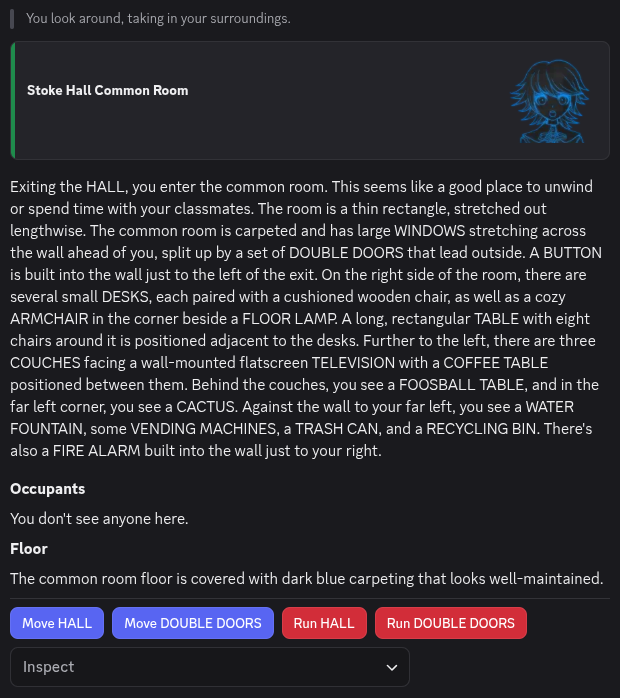
It seems that we’re in the Stoke Hall Common Room. The first section of this output we see is a banner showing the name of the room. The next section a written description of what the room looks like and what is in the room. We then see a section on the occupants of the room. There is then a section about the floor of the room. Finally, there are a number of interactables at the bottom of the output.
Let’s have a look at the description of the room. If you’re wondering how we can tell what we can inspect, most things
that can be inspected will be in ALL CAPS (except for exits). For instance, we can see that we can inspect the
ARMCHAIR in the room.
.x armchair

Now that we know how to use the inspect command, we can have a good look at everything in Alter Ego!
Inspecting with Interactables
Important
Not all things can be inspected with interactables. When in doubt, use the command instead.
See the Inspect dropdown menu in the image above? That is the interactable used for inspecting things.
We’ll click on the dropdown and select something else in the room and see what happens.
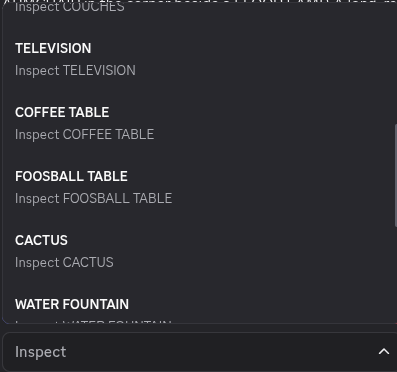
Let’s see, how about we have a look at the COFFEE TABLE? Let’s click on it.
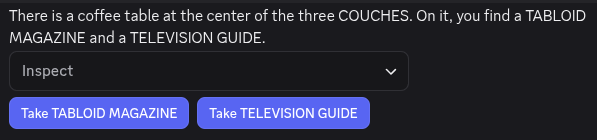
Not only do we know how to inspect things using a command, we can also just click on them! Bet that makes inspecting a heck of a lot faster doesn’t it?
Picking Items Up
Did you notice that there aren’t just furniture around the room, but also things around we can take?
For instance, the coffee table that we inspected has a TABLOID MAGAZINE and a TELEVISION GUIDE on it.
The Take Command
Tip
If there are multiple items with the same name in a room. You can specify which one by using the container it is from. For instance, if there are many spoons in a dining room, we can take only the spoon in front of us:
.take spoon from table 4
To take something, you use the take command. The take command allows you to take something from the room and put it in an open inventory slot. Keep in mind that we must have a free hand to take something, but since we’re not carrying anything in our hands right now, we can take anything we want.
To use the take command we send .take followed with the item we want to take. Let’s take the TABLOID MAGAZINE
from the coffee table.
.take tabloid magazine

Nice, we now have a tabloid magazine in our possession. Wonder what kind of gossip it has? Turns out that we can also inspect the items in our hand!
Tip
If an item in a room has the same name as an item in your inventory, you can inspect your item by putting
mybefore it. For instance, if there are a bunch of sandwiches on the counter and you wish to inspect the one you’re holding:.inspect my sandwich
.x tabloid magazine
Taking with Interactables
Just like with inspecting, we can take items from around the room with interactables. Let’s inspect the coffee table again.
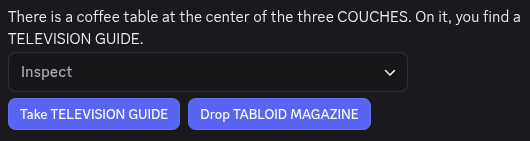
We have the TABLOID MAGAZINE in one hand, so our other hand is free, so if we press the Take TELEVISION GUIDE
button, we can take that too!

Now that we have the television guide, we can find the airing times for any show we want! Although… who even uses TV guides these days? Or even watches live TV?
Your Inventory and You
After raiding the coffee table, our hands are now full with reading material. Since we can’t go around all day holding those, how do we put things in pocket (or bag)? This is where your inventory comes in. Each player has an inventory where they can put the items they are carrying. Your inventory also includes the clothes that you are wearing.
The Inventory Command
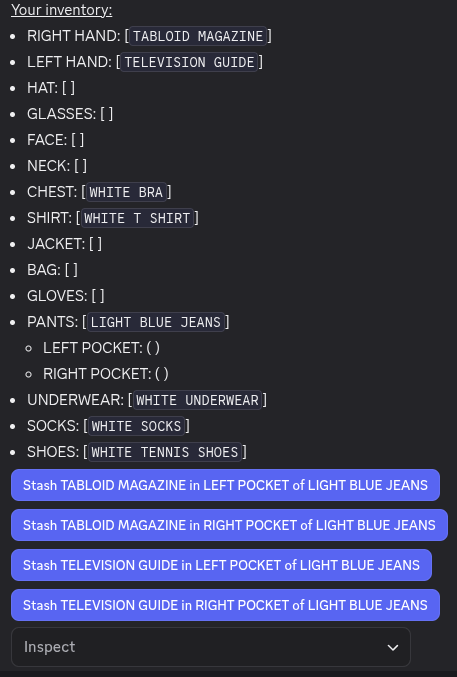
To look at your inventory, you use the inventory command. The inventory command lists everything that we have equipped and also items that we have stashed.
Let’s see what we are carrying with us by sending the .inventory command.
.inventory
Important
Remember, we equip items in equipment slots and stash items in inventory slots.
Nice! We can see that we’re carrying the magazine and the TV guide in each of our hands. We also see that we have a number of equipment slots and inventory slots.1
Inventory entries with square brackets [] are equipment slots whereas those with round brackets () are inventory
slots.
For instance, we have a BAG equipment slot with nothing [] equipped, whereas our RIGHT HAND and LEFT HAND have
a [TABLOID MAGAZINE] and a [TELEVISION GUIDE] equipped respectively.
Pieces of equipment can have inventory slots that we can stash items into. For instance, our PANTS have two
inventory slots: LEFT POCKET and RIGHT POCKET.
The Stash Command
Now let’s say we want to take the magazine with us to read later. We can do this by stashing it in one of our inventory slots.
The stash command allows you to stash an item in one of your hands
to one of your inventory slots. To use the stash command, you send .stash followed by an item in your hands then
the inventory slot you want to stash it in.
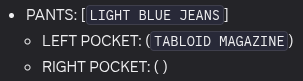
Let’s stash our magazine in our left pocket.
.stash tabloid magazine in left pocket of light blue jeans

If we check our inventory again, we can see that the magazine has indeed been stashed in our left pocket.
Stashing with Interactables
Using the stash command can get tedious, given the length of the arguments. That’s why you can also stash with interactables!
If we have a look at our inventory again, we can see that there are buttons that let us stash items with a single click.

Let’s try stashing our TV guide in our right pocket this time with the STASH TELEVISION GUIDE in RIGHT POCKET of LIGHT BLUE JEANS button.

Nice! We put that guide in our pocket without needing to type the full command.
Getting Rid of Stuff
It’s all well and good that we can put stuff in our inventory, but how can we get rid of it? It would be pretty rude to just take the magazine and the guide from the common room right? So let’s try to put them back where they were on the coffee table.
First, we have to unstash them from our inventory and return it to our hands before we can drop them.
The Unstash Command
Note
While you can specify the container to unstash an item from (i.e.
.unstash television guide from right pocket of light blue jeans), this is only necessary when you have multiple of the same item in your inventory.
The unstash command lets you remove an item from one of your
inventory slots and place it in your hand. To use it, send .unstash followed by the item you want to unstash.
Let’s try unstashing the TV guide.
.unstash television guide

If we look at our inventory, we can see that the TV guide has been returned to one of our hands.

Unstashing with Interactables
As with the stash command, we can unstash items by clicking on the corresponding button in our inventory.
We will also unstash our TABLOID MAGAZINE, but we will leave that out of the guide for brevity.
The Drop Command
Important
If you use the drop command without specifying where, you’ll end up dropping it on the floor!
Now that we have our TV guide and tabloid magazine back in our hands, we can put it back on the coffee table with the
drop command. To use the drop command, type the .drop command
followed by where you want to drop the item.
Let’s try dropping the TV guide on on the coffee table.
.drop television guide on coffee table

Now all we have to do is to put the magazine back as well.
Dropping with Interactables
As with picking up items, we can use interactables to drop them as well. To do this, we first have to inspect the place we want to drop the item on.
.x coffee table
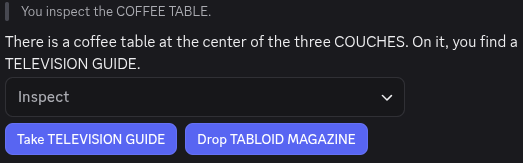
If we click on the Drop TABLOID MAGAZINE button, we can drop that as well.

Now everything is back where it should be!
Using Items
While just looking at and taking items can be interesting, you can use some items as well!
Not all items can be used, but using items is very important! For instance, to not starve, you have to eat regularly. To do that, you must eat (use) food. Alter Ego games often contain puzzles, some of which might involve using certain items such as a remote control. Some doors might also be unlocked by pressing (using) a button on the wall.
Not only can you use items that are in your inventory, you can use items around the game world too regardless of if they can be picked up. So go around, explore, and try and use stuff!
The Use Command
To use an item, you use the use command. As there are many ways to
use something, this is a command that has many aliases. Some of them include .eat, .drink, and .activate.
It usually doesn’t matter which one you use,2 so don’t worry about which alias to use!
Have you ever been in a situation where you find yourself holding a bass guitar? Well if you do, perhaps your first
instinct is to use it. To use an item, type the .use command followed by the item or fixture (something in a
room that can’t be moved by a player e.g. a piano) you want to use.
Let’s try and use our BASS GUITAR and see what happens.
.use BASS GUITAR
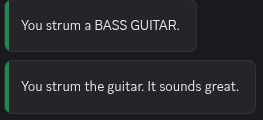
Now we’re ready to jam!
Using with Interactables
We can also use interactables to use things. Let’s have a look at our inventory.
.i
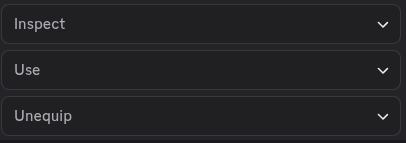
As we have the BASS GUITAR in our hands, we see that a Use dropdown menu3 has appeared at the bottom of our
inventory!
Let’s open that dropdown by clicking on it.
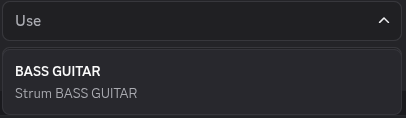
Looks like the only thing we can use is our BASS GUITAR. Let’s click on it.
Nice! Now we’re really making a name for ourselves in history or rock n’ roll!
-
Inventory slots can be configured by your moderator, so don’t worry if this inventory looks different from yours! ↩
-
This is true except for a few edge cases. For instance, it’s not possible to
.lockor.unlocka sandwich. In general, if the sentence makes sense, it should be possible! ↩ -
Wondering why it’s a dropdown when you can only hold up to two items? Sometimes using an item can have dangerous, irreversible effects. You wouldn’t want to poison yourself by using a
CYANIDE PILLbecause you accidentally pressed a button. Since it’s a dropdown, you have to perform two clicks or taps to use it, making it less likely that you’ll use something by accident. ↩